Is your WordPress website running on PHP? Then this one is important. On October 21, 2026, PHP released an urgent security update to fix two critical vulnerabilities known as PHP2Shell. These flaws can let a hacker run code on your server without logging in. In this tutorial, we will show you what the PHP vulnerability is, how it affects WordPress sites, and how you can check and update your PHP version in cPanel step by step.
First let’s see what PHP2Shell actually is.
- 1. What Is the PHP2Shell Vulnerability?
- 2. Which PHP Versions Are Affected?
- 3. Will Updating WordPress Fix This PHP Vulnerability?
- 4. How to Check PHP Version in WordPress
- 5. How to Update PHP Version in cPanel
- 6. Temporary Protection If You Can’t Update PHP Yet
- 7. How to Check If Your WordPress Site Was Hacked
- 8. Which PHP Version Should You Use for WordPress?
- 9. Conclusion
- 10. Frequently Asked Questions (FAQ’s)
What Is the PHP2Shell Vulnerability?
PHP2Shell is the name given to two critical PHP vulnerabilities, CVE-2026-109618 and CVE-2026-109619. Both can allow unauthenticated remote code execution, which means an attacker can run commands on your server without any username or password. The PHP team fixed them on October 21, 2026 in PHP 8.5.12, 8.4.27, 8.3.36 and 8.2.35 (PHP.net security advisory).
CVE-2026-109618: RCE via Out of Memory Corruption
When a request hits PHP’s memory_limit at the wrong moment, PHP can leave half-ready data in memory and later treat it as valid. According to the PHP Foundation, on Apache with mod_php this can be triggered before any WordPress code runs (PHP Foundation, Oct 21, 2026). CERT-EU gives it a CVSS score of 9.2 (CERT-EU advisory).
CVE-2026-109619: RCE via Stale Global State
In this case, internal data from one request can survive after its memory has been freed. A later request handled by the same PHP worker may then use that old data. This one also has a CVSS score of 9.2 (CERT-EU).
Is PHP2Shell Being Exploited?
Yes. CISA added both CVEs to its Known Exploited Vulnerabilities catalog on October 26, 2026 (CISA alert). Amazon Threat Intelligence also spotted an exploit attempt on October 17, four days before the public disclosure (AWS Security Blog). BleepingComputer reported confirmed remote code execution on an Apache mod_php server running PHP 8.4.26 (BleepingComputer).
Which PHP Versions Are Affected?
All PHP versions from 5.4 up to 8.5.11 are affected (Google Cloud). Use the table below to see if your version is safe.
| PHP Branch | Vulnerable Versions | Safe Version |
|---|---|---|
| PHP 8.5 | Below 8.5.12 | 8.5.12 or newer |
| PHP 8.4 | Below 8.4.27 | 8.4.27 or newer |
| PHP 8.3 | Below 8.3.36 | 8.3.36 or newer |
| PHP 8.2 | Below 8.2.35 | 8.2.35 or newer |
| PHP 8.1 and older | All | No official fix, upgrade PHP |
Note: PHP 8.1 and older no longer get updates from the PHP project. CISA says systems that cannot be updated should be taken offline until they are patched.
Will Updating WordPress Fix This PHP Vulnerability?
No. PHP2Shell is a flaw in the PHP software on your server, not in WordPress. Updating WordPress core, themes or plugins does not change your PHP version (Vercel bulletin). You need to update PHP itself, and PHP must be restarted after the update. On shared hosting, your host handles the restart.
How to Check PHP Version in WordPress
You can check your PHP version from the WordPress dashboard using Site Health. Follow below mentioned steps.
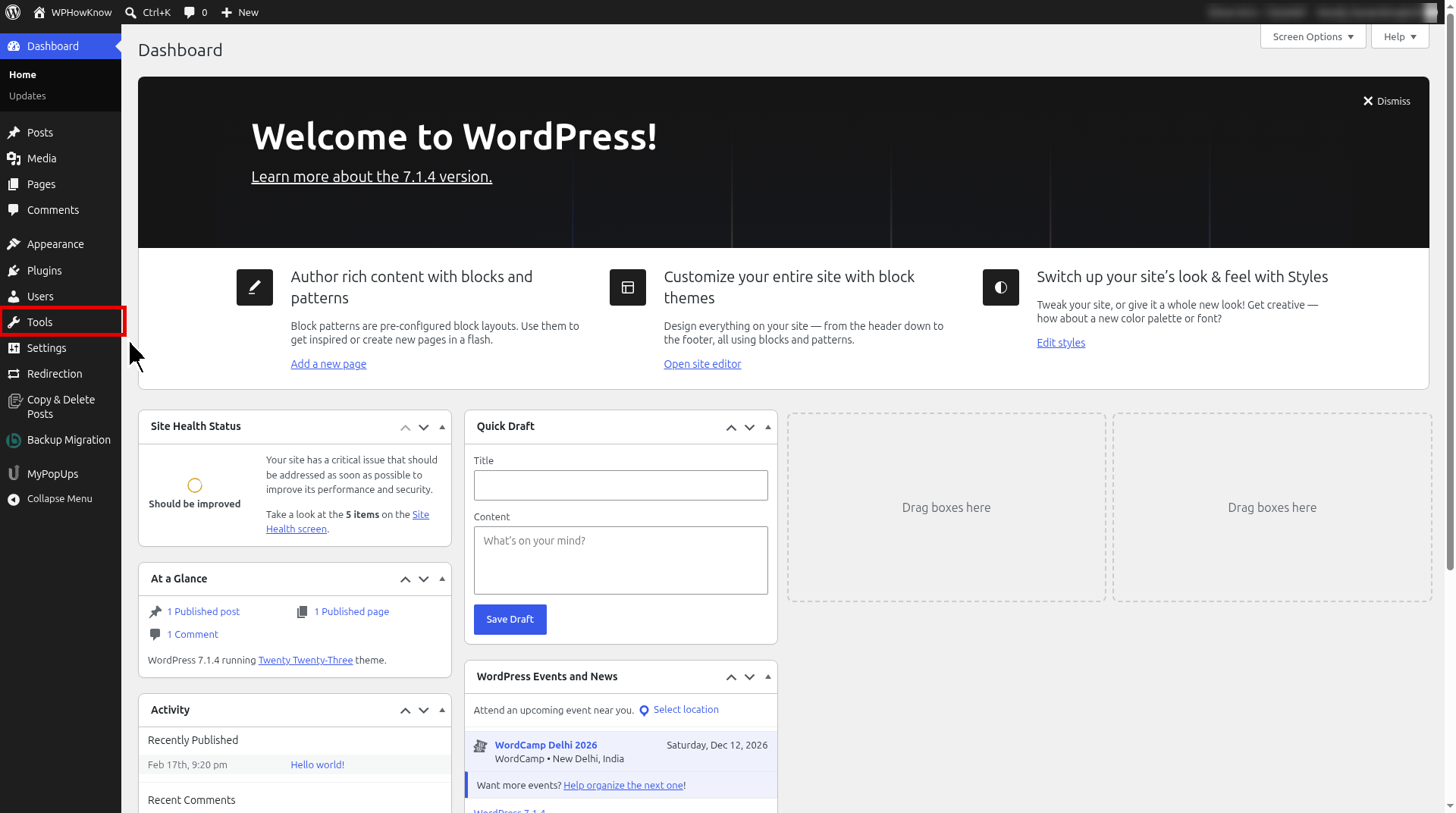
- Log in to your WordPress dashboard and hover your mouse over the “Tools” menu in the left side menu. Click on “Site Health.”
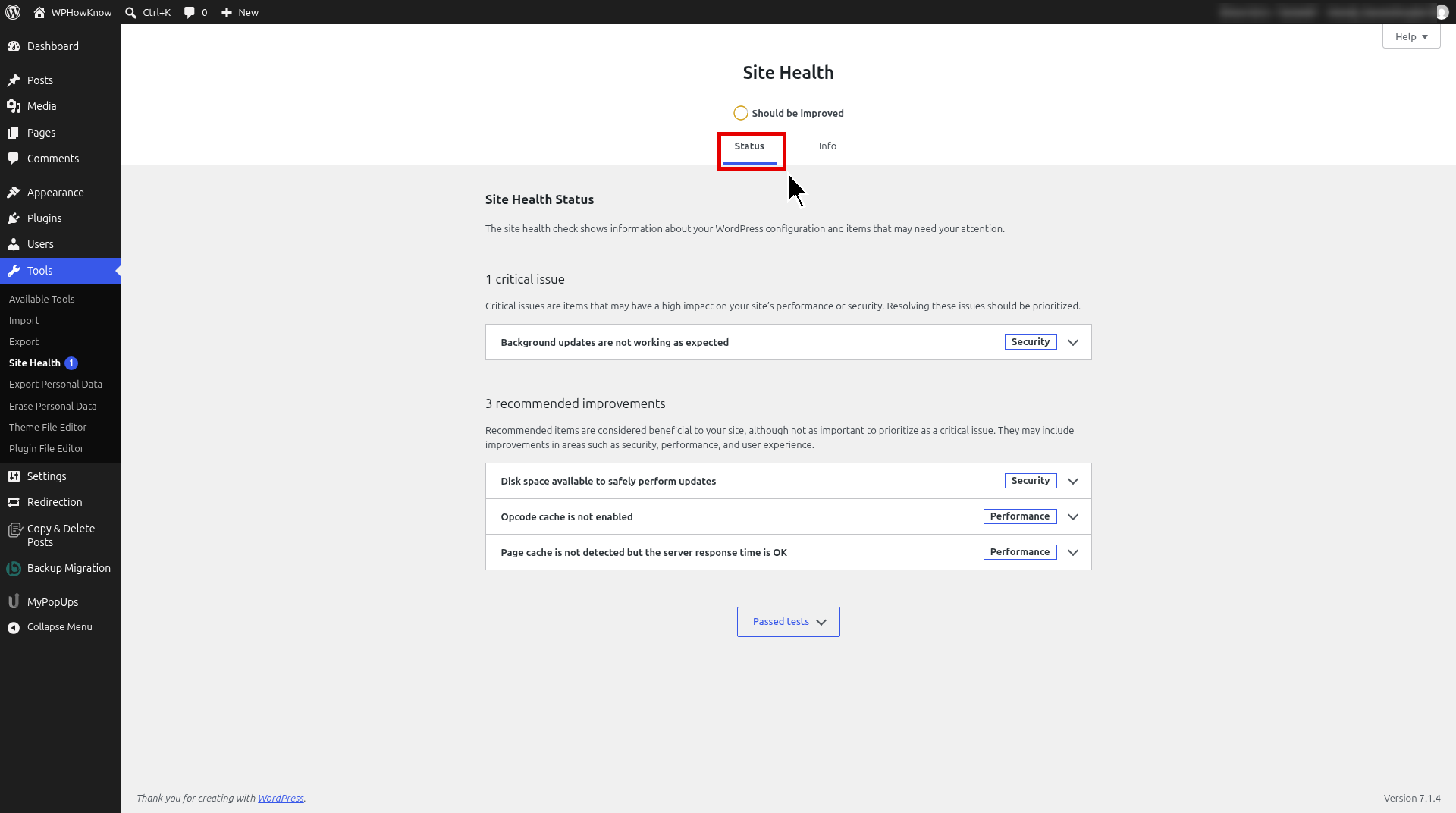
- On the Site Health “Status” tab, WordPress shows critical issues and recommended improvements. If your PHP is outdated, you may see a warning here.
- Now click on the “Info” tab and open the “Server” section. Here you will see your “PHP version.”
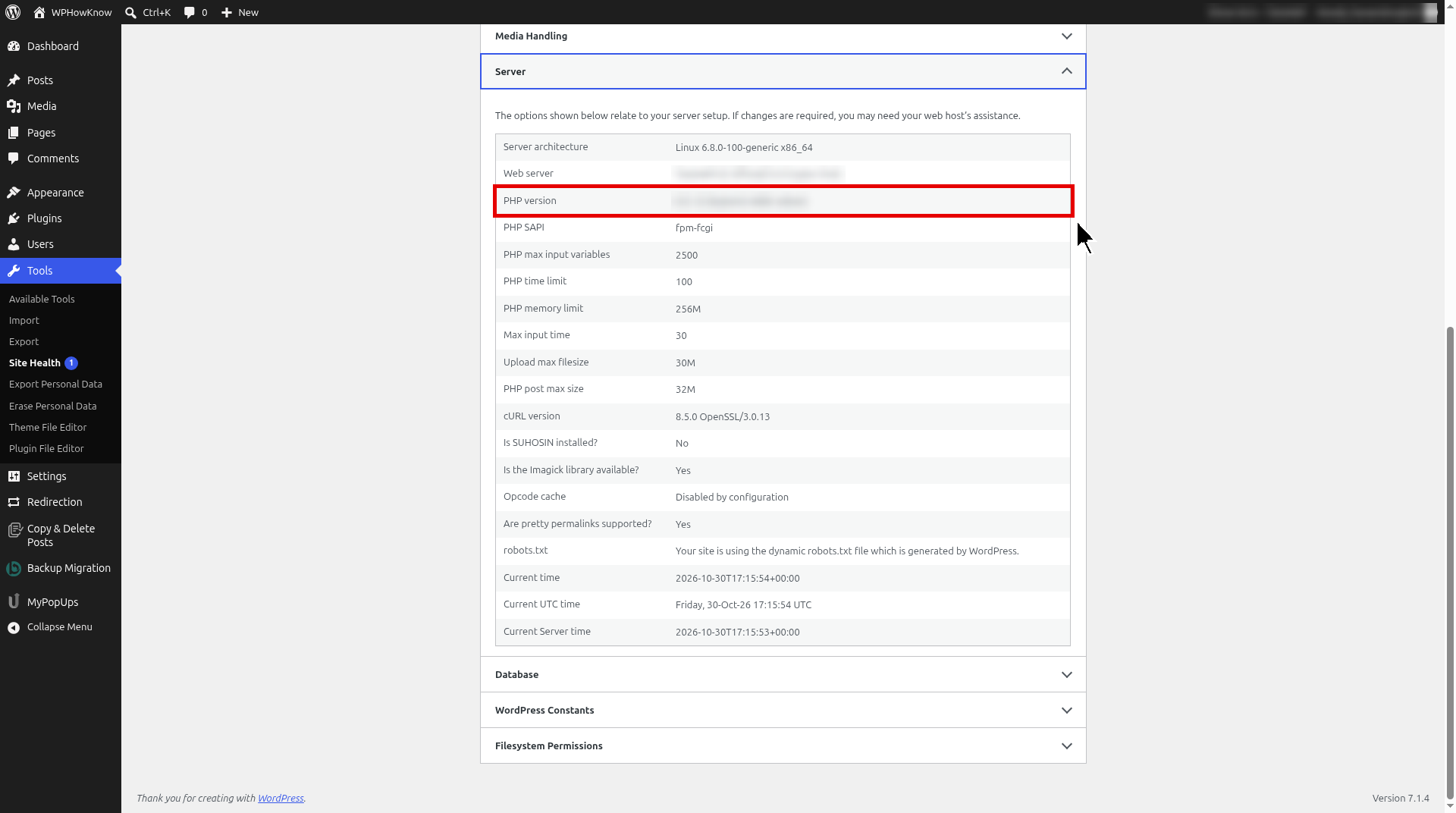
If the version shown is lower than the safe version in the table above, you need to update PHP.
How to Update PHP Version in cPanel
Before you update PHP, don’t forget to create a complete backup of your website. In case something goes wrong, you can restore your website using that backup. You can also export your WordPress posts with featured images to keep an extra copy of your content. Now follow below mentioned steps to update PHP in cPanel.
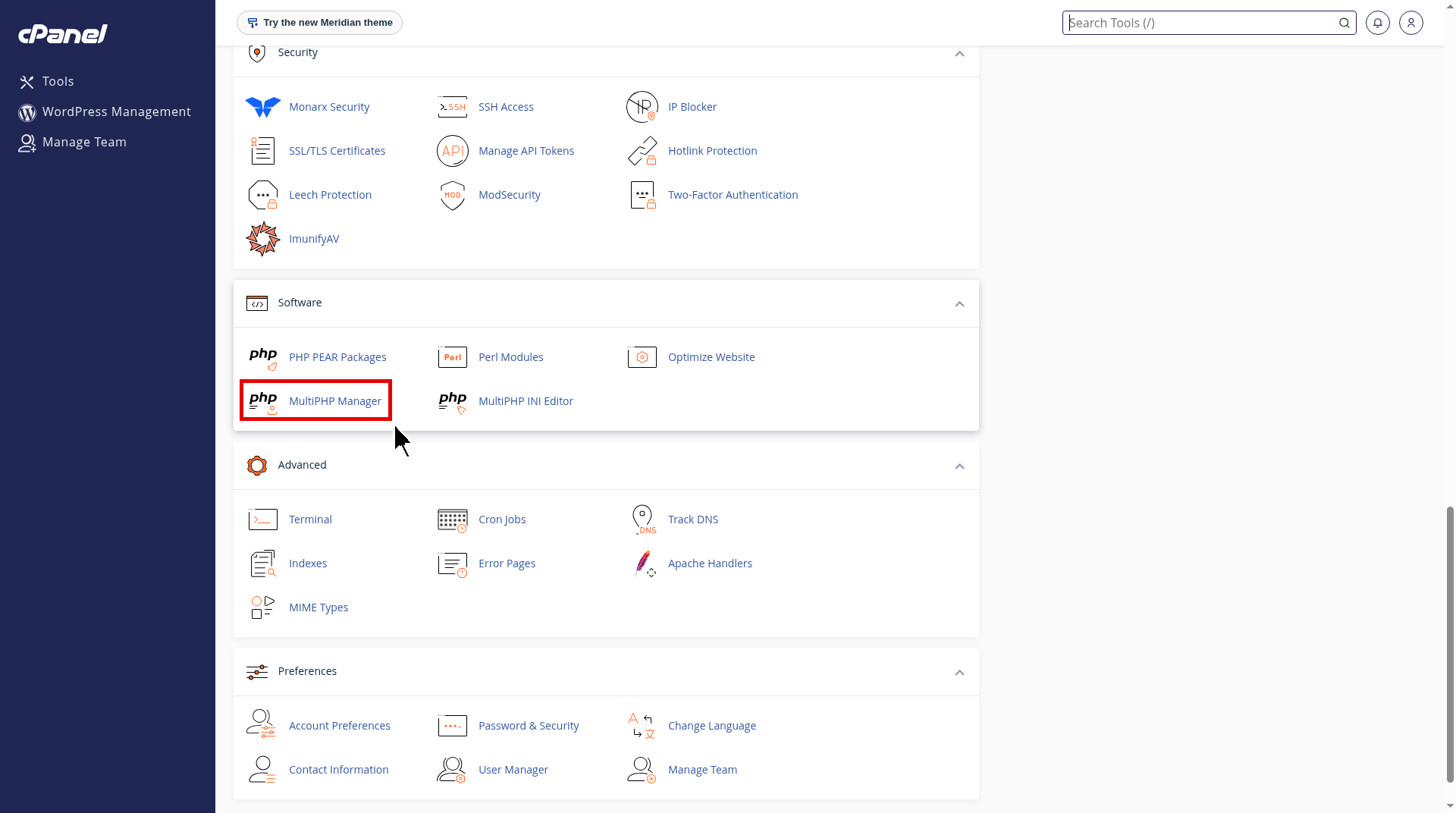
- Log in to your cPanel. If you are using GoDaddy, see how to access cPanel in GoDaddy web hosting account. Under the “Software” section, click on “MultiPHP Manager.”
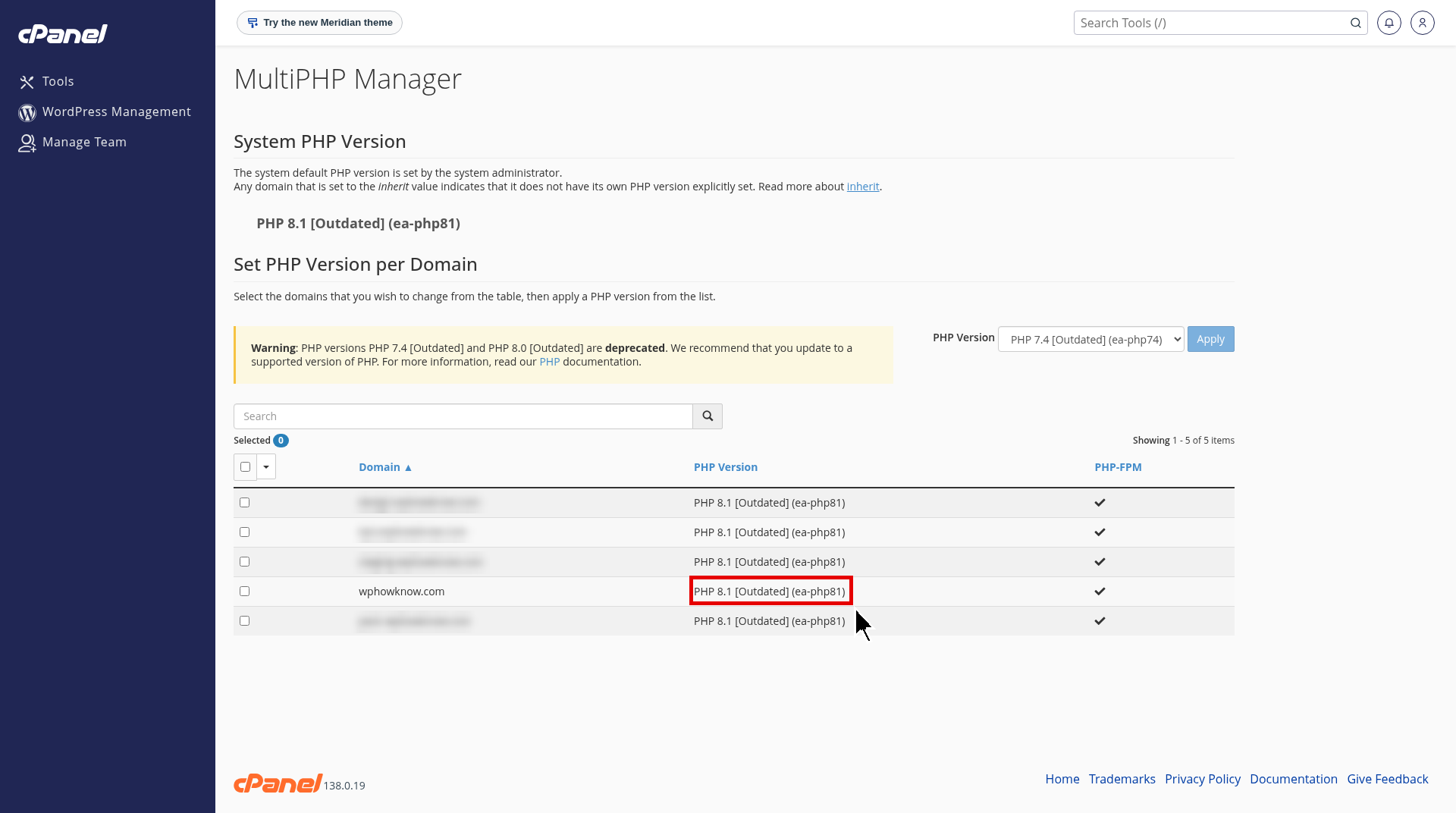
- Here you will see all your domains and the PHP version each one is using. Check the box in front of your domain. From the “PHP Version” dropdown, select PHP 8.5 and click on the “Apply” button. If PHP 8.5 is not available at your host, select PHP 8.4 instead. Some hosts only show versions up to PHP 8.4.
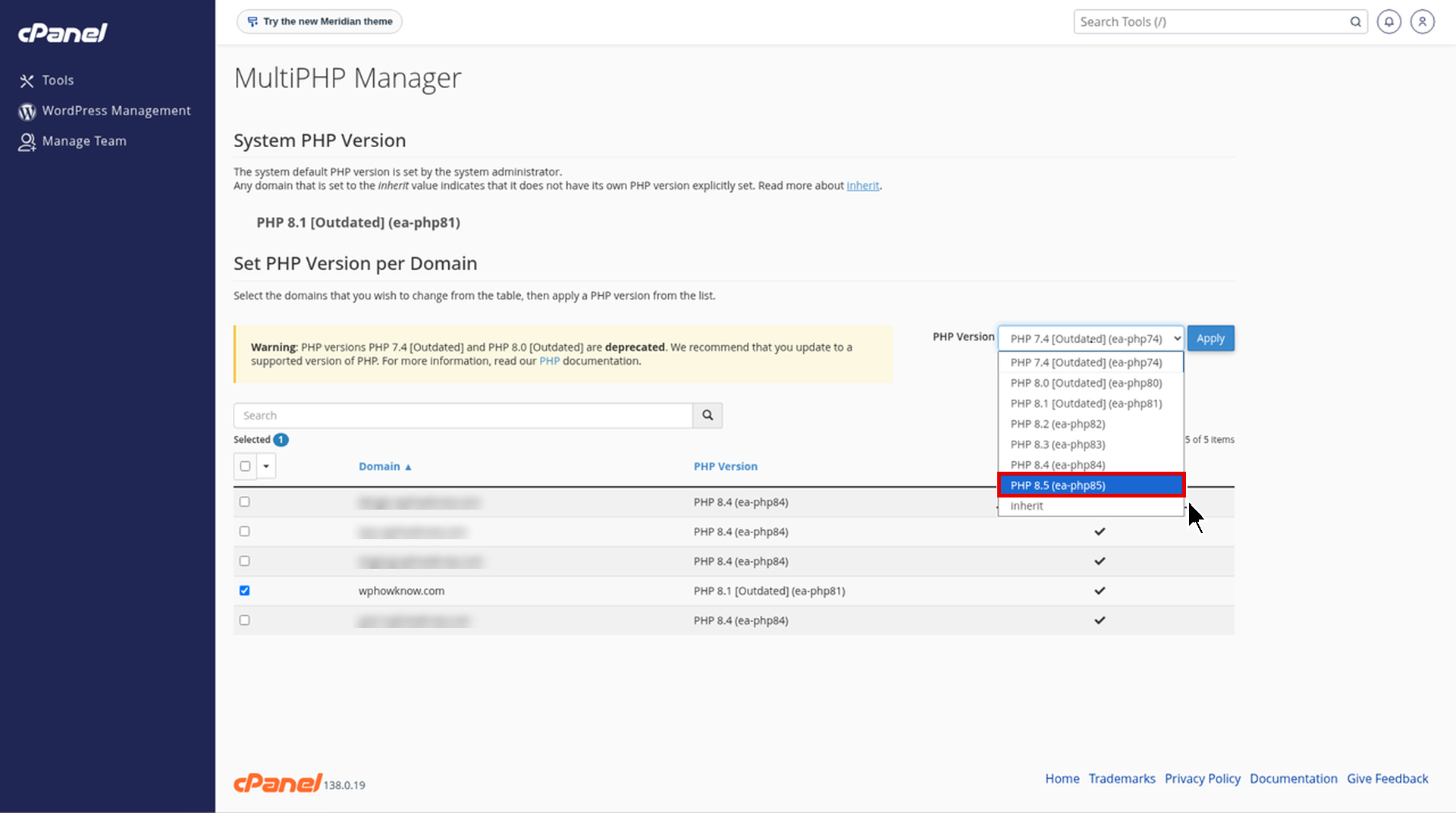
- Once applied, go back to Tools > Site Health > Info > Server in WordPress and confirm the new PHP version is shown. Then open your website and check that everything is working fine. If an old plugin or theme breaks after the switch, update it first, just like we explained in WordPress update breaking sites issues.
Note: cPanel only lets you pick the PHP branch (like 8.5 or 8.4). The exact patch number (like 8.5.12 or 8.4.27) depends on your host. So contact your hosting support and ask them to confirm that the patched PHP build is installed and PHP workers were restarted (PHP2Shell Live guide).
Temporary Protection If You Can’t Update PHP Yet
Updating PHP is the only complete fix. But if your host needs time, you can add two settings that helped stop attacks on InstaWP’s WordPress sites (InstaWP report). These settings must go in php.ini, not in .user.ini or ini_set(), which do not help.
- In cPanel, under the “Software” section, click on “MultiPHP INI Editor.” In the “Basic Mode” tab, select your domain from the dropdown.
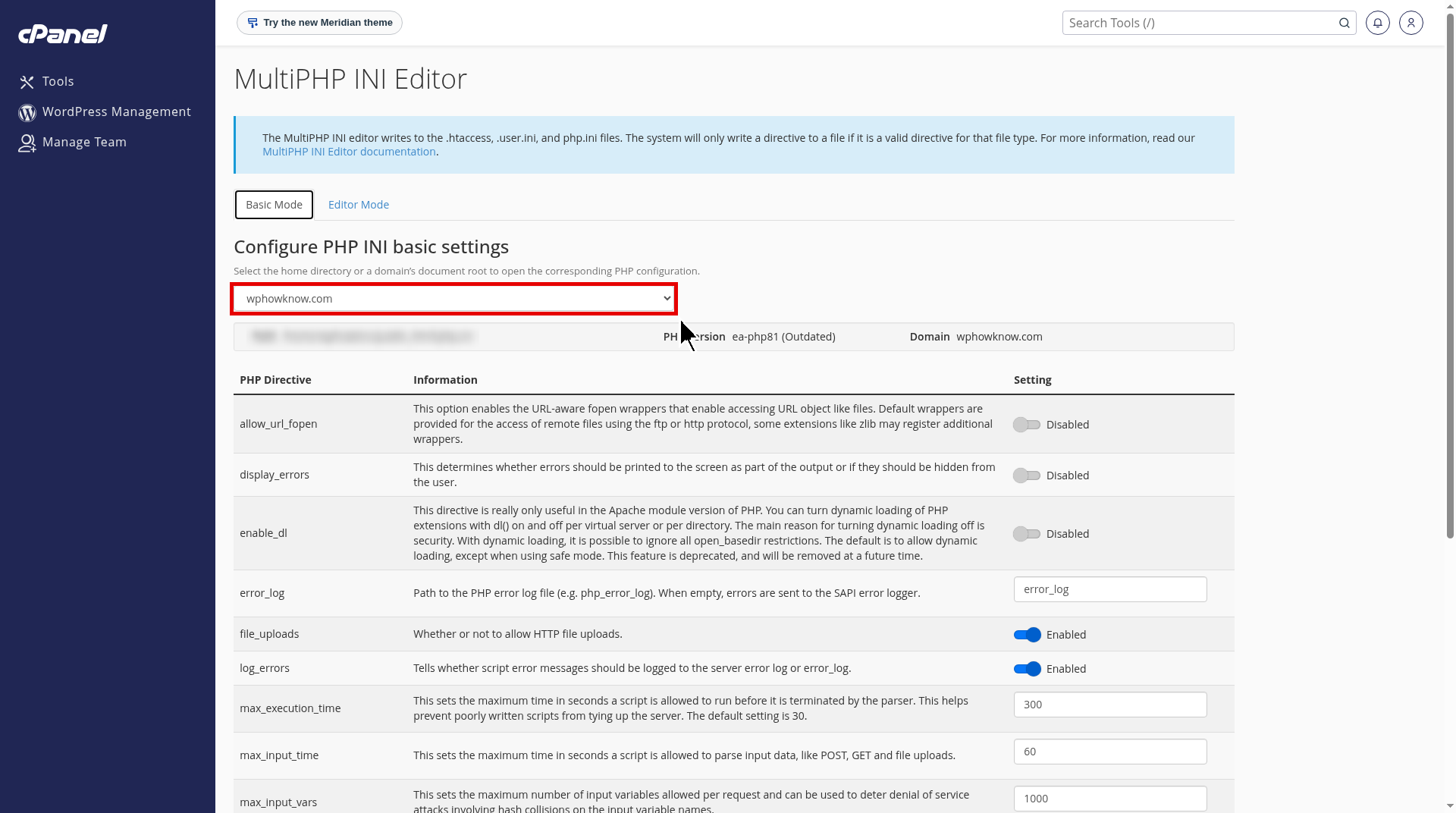
- Click on the “Editor Mode” tab, add the lines below and click on the “Save” button.
session.upload_progress.enabled = 0
max_input_nesting_level = 32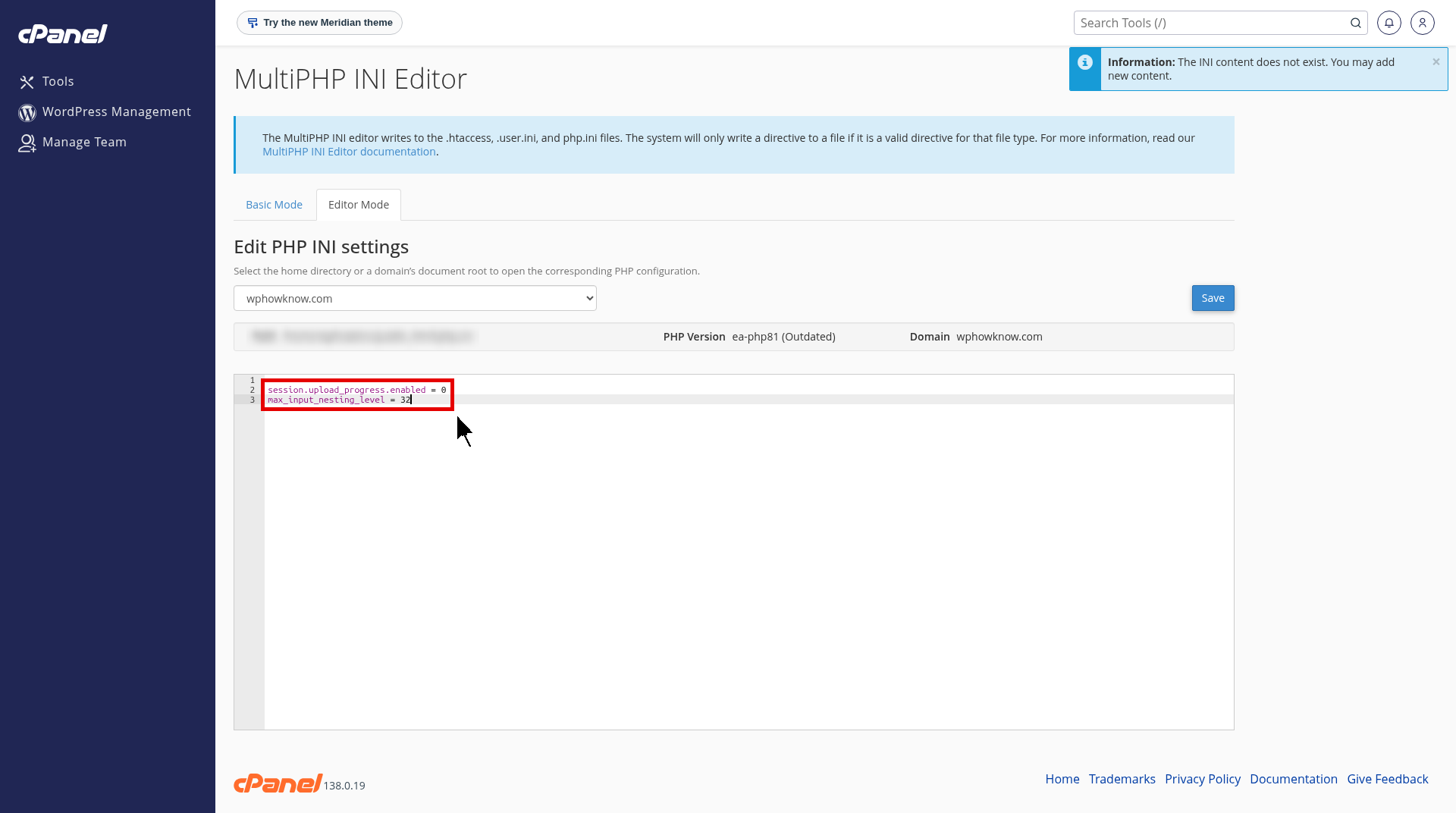
Keep these settings even after updating, because InstaWP saw attackers still probing for upload progress hours after the patch.
How to Check If Your WordPress Site Was Hacked
Because this attack can happen before WordPress code runs, your logs may show nothing. So after updating PHP, do these quick checks (php2shell.dev checklist).
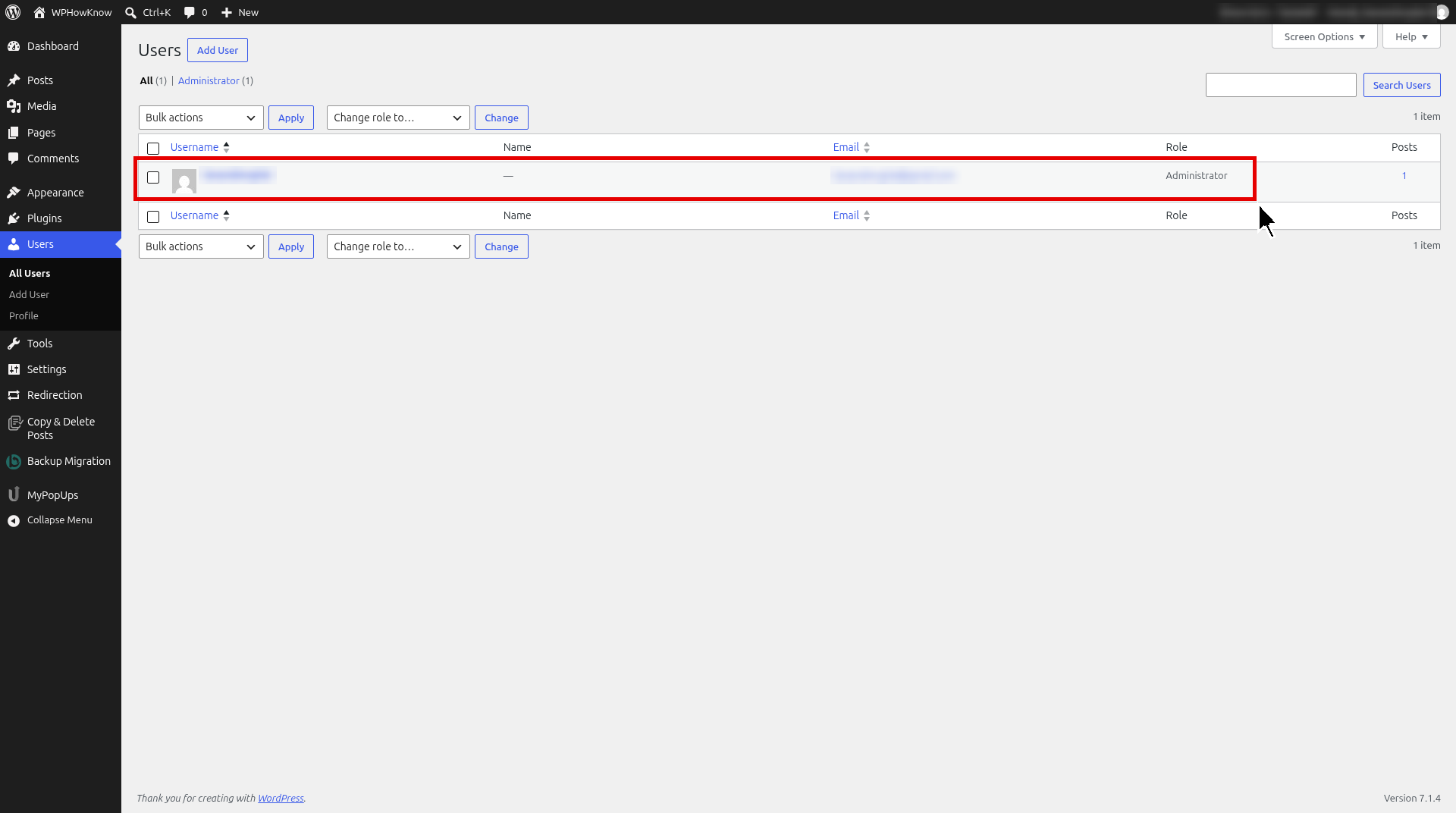
Look for Unknown Admin Users
Go to Users > All Users and filter by “Administrator.” Look for any account you don’t recognize, especially one created on or after October 21, 2026.
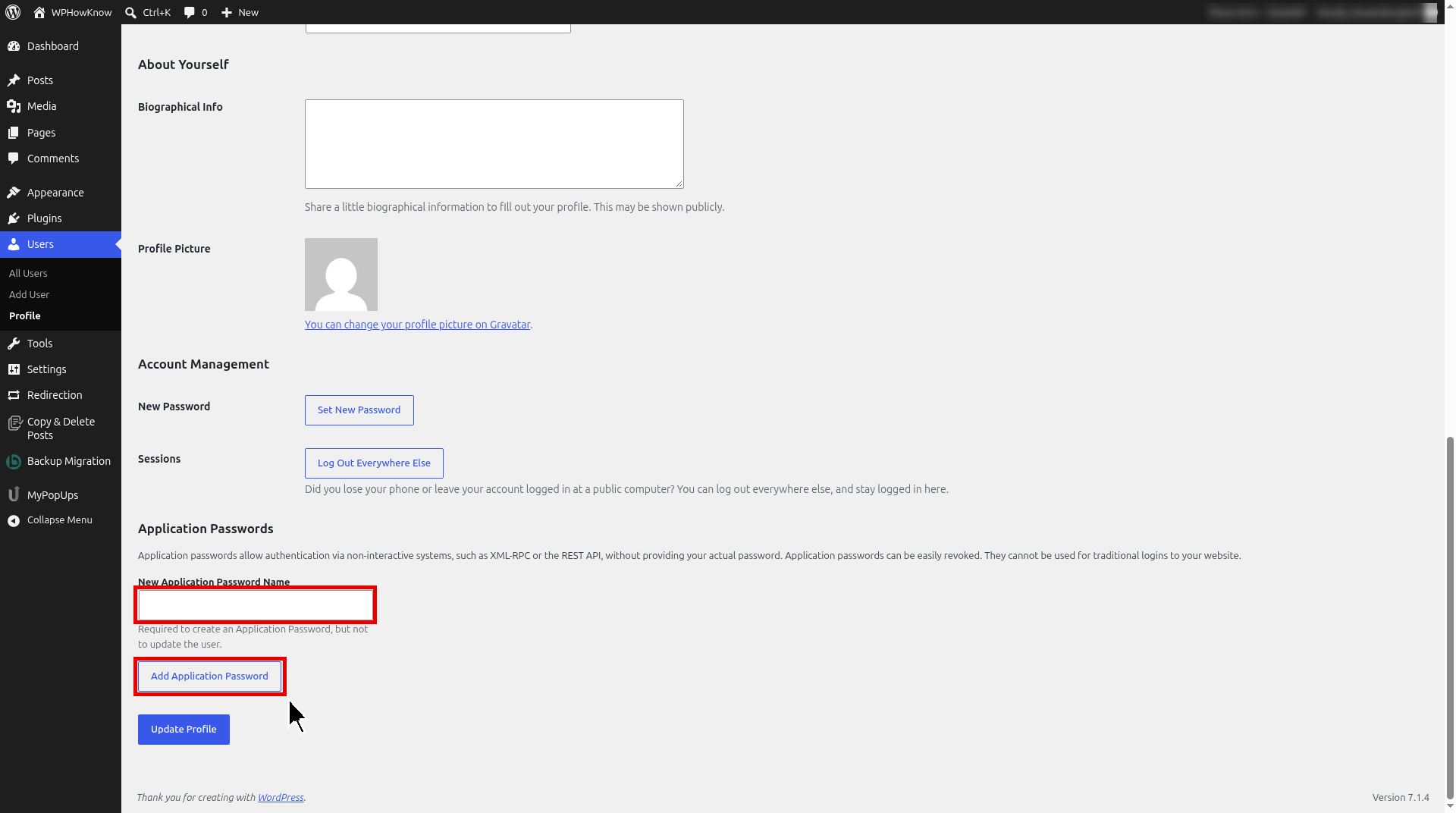
Check Application Passwords
Go to Users > Profile and scroll down to “Application Passwords.” If you see one you did not create, click on “Revoke.” Application passwords still work even after you change your login password.
Look for PHP Files in the Uploads Folder
In cPanel, open “File Manager” and go to public_html. Check the .htaccess file for an auto_prepend_file line you didn’t add.
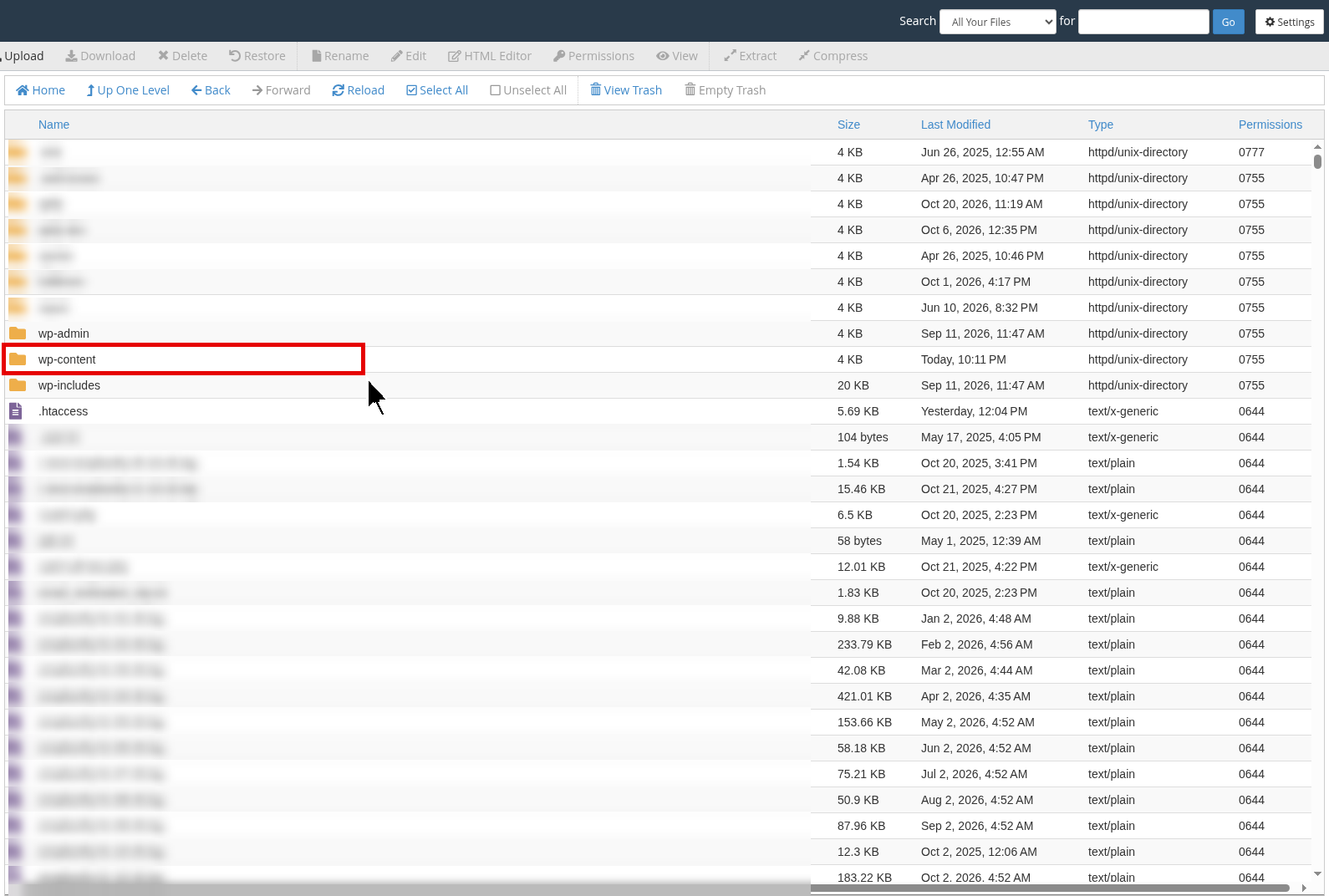
Now open wp-content/uploads. This folder should only have images and media files. If you find any .php file here, that is a red flag.
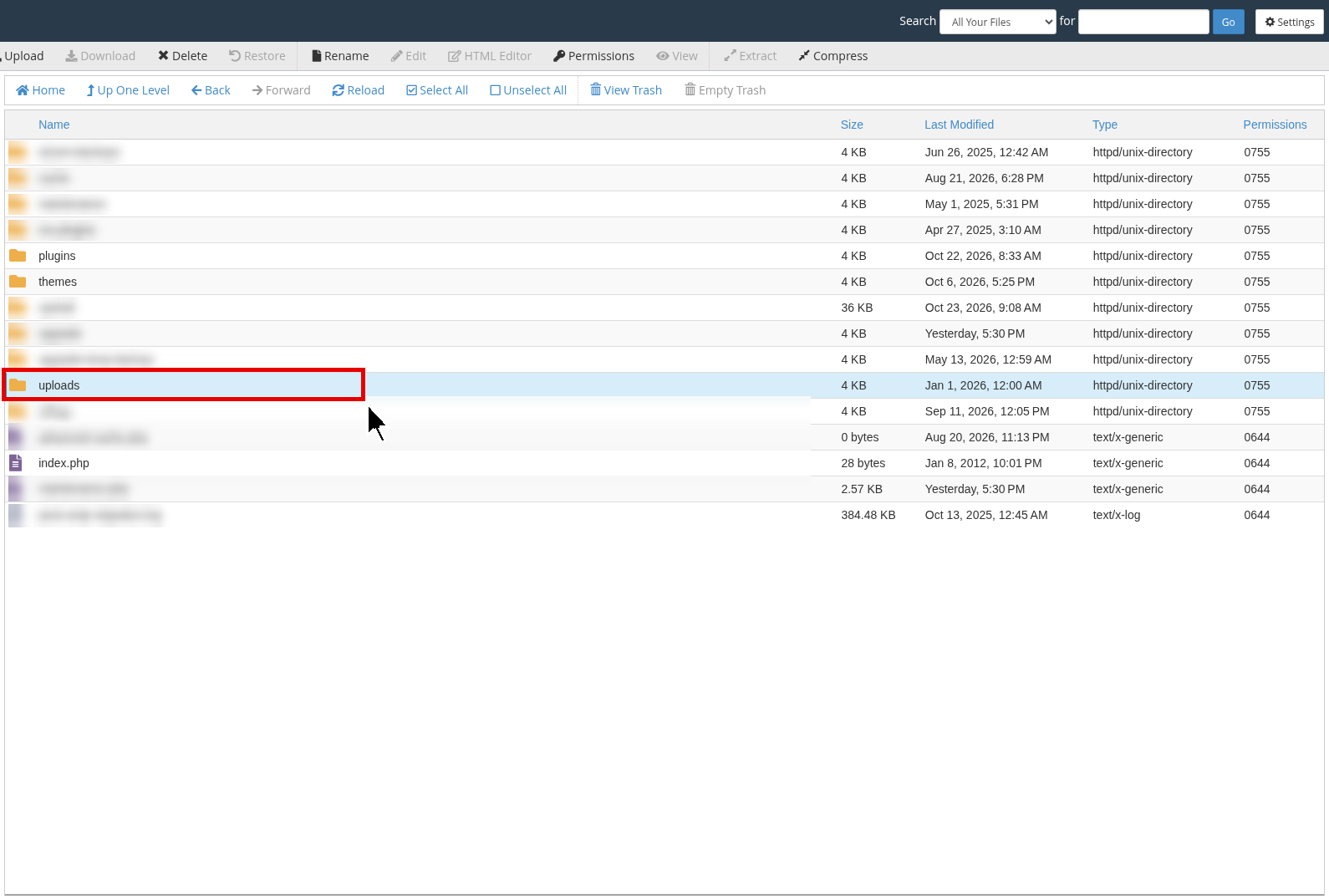
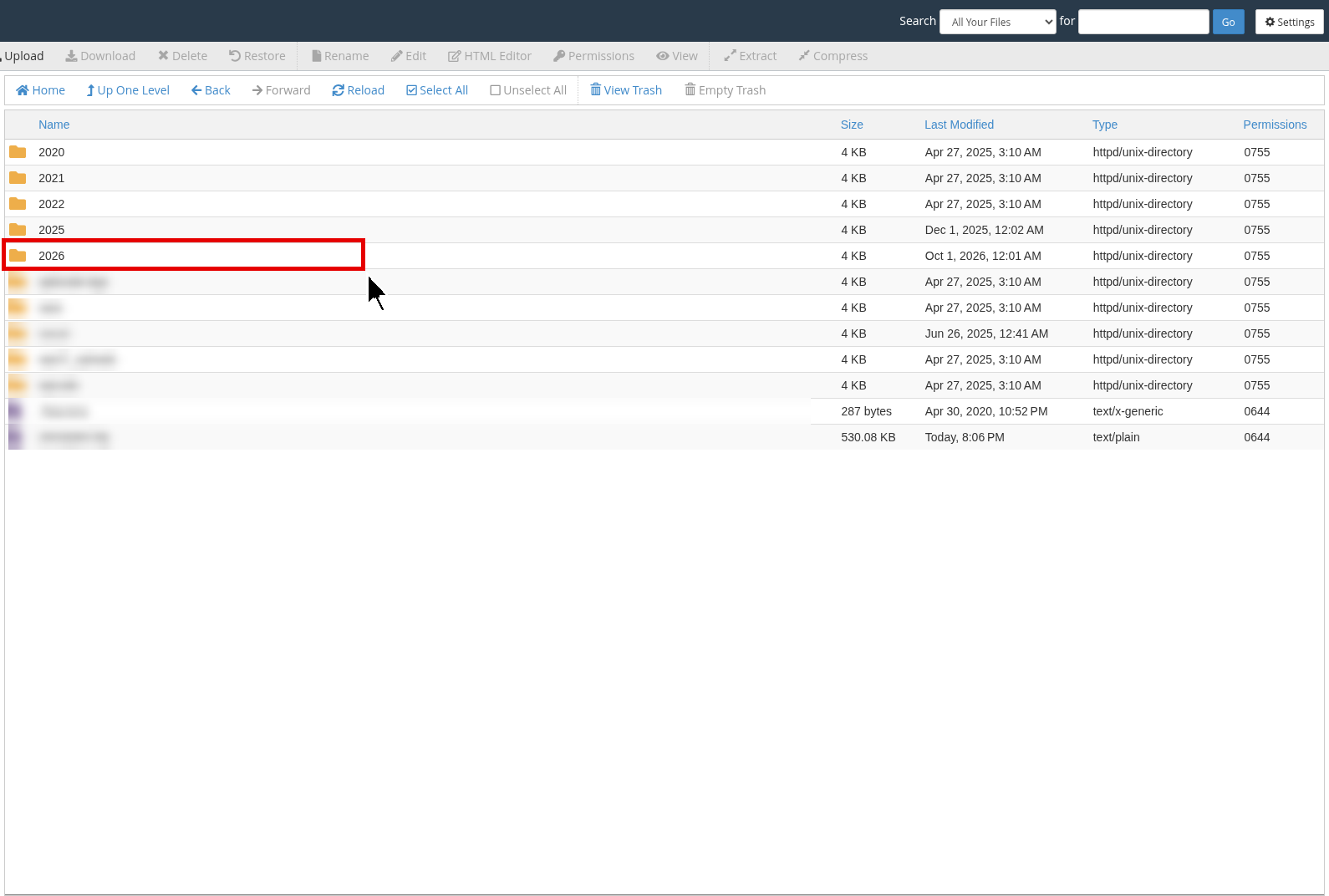
If you find something suspicious, put your site in maintenance mode, keep a copy of your files and database, change all passwords and contact your host or a security professional.
Which PHP Version Should You Use for WordPress?
For WordPress 7.1, the recommended PHP versions are 8.4 or 8.5. The absolute minimum is PHP 7.4, but that is end of life and not safe. Also, PHP 8.2 reaches end of life on December 31, 2026, so if you are on 8.2, plan to move to 8.4 now (WordPress Hosting Team).
Conclusion
PHP2Shell is a serious threat, and it is already being exploited. The fix is simple: check your PHP version in Site Health, switch to PHP 8.5 or 8.4 in cPanel and ask your host to confirm the patched build. After that, check your site for unknown users and suspicious files. If you have any question, let us know in the comments below.
Frequently Asked Questions (FAQ’s)
PHP2Shell is the name for CVE-2026-109618 and CVE-2026-109619, two critical PHP flaws fixed on October 21, 2026 that allow unauthenticated remote code execution.
Your site is affected if it runs PHP below 8.5.12, 8.4.27, 8.3.36 or 8.2.35, or any version of PHP 8.1 or older.
Go to Tools > Site Health > Info and open the Server section. Your PHP version is shown there.
No. The flaw is in PHP on your server. You must update PHP and restart it. Updating WordPress, themes or plugins does not fix it.
Open MultiPHP Manager in cPanel, check your domain, select PHP 8.5 (or PHP 8.4 if 8.5 is not available) from the dropdown and click Apply. Then ask your host to confirm the patched build.
The WordPress Hosting Team recommends PHP 8.4 or 8.5 for WordPress 7.1.
PHP 8.2 reaches end of life on December 31, 2026. After that it will not get security fixes.
The PHP project no longer releases fixes for PHP 8.1 or older. Upgrade to PHP 8.5 or 8.4 as soon as possible. CISA advises taking unpatched systems offline until they are updated.