Is your WordPress website still running on an old PHP version? PHP is the programming language that runs WordPress, and every new version makes your site faster and more secure. The good news is that you can update PHP version in WordPress cPanel in just a few clicks, without touching any code.
Quick answer: Log in to cPanel, go to Software > MultiPHP Manager, tick the checkbox next to your domain, choose the new version from the PHP Version dropdown and click Apply. Then go to Tools > Site Health > Info > Server in WordPress to confirm the new version.
In this guide, we will walk you through the whole process with screenshots, from checking your current version and taking a backup to rolling back if something goes wrong.
- 1. Why Should You Update PHP Version of Your WordPress Website?
- 2. Which PHP Version Should WordPress Use?
- 3. How to Check Your Current PHP Version in WordPress
- 4. Things to Do Before You Update PHP
- 5. How to Update PHP Version in WordPress Through cPanel (MultiPHP Manager)
- 6. How to Change PHP Version Using Select PHP Version
- 7. Check PHP Settings in MultiPHP INI Editor (Optional)
- 8. How to Confirm the New PHP Version in WordPress
- 9. Troubleshooting After a PHP Update
- 10. Conclusion
- 11. FAQs
Why Should You Update PHP Version of Your WordPress Website?
Every PHP version gets security fixes for a limited time only. Once a version reaches its end of life, no more security patches are released, and hackers can use known flaws to attack your website. A recent example is the PHP2Shell vulnerability, which affected sites running unpatched PHP versions.
Apart from security, newer PHP versions are faster, use less memory and are needed by the latest plugins and themes. So, keeping PHP up to date is just as important as keeping WordPress itself updated.
Which PHP Version Should WordPress Use?
According to the official WordPress requirements, WordPress recommends PHP 8.3 or higher. WordPress still works on PHP 7.4, but that version no longer gets any security updates.
Here are the current support dates for each PHP version from PHP.net supported versions.
| PHP Version | Active Support Until | Security Fixes Until | Status |
|---|---|---|---|
| PHP 8.5 | 31 Dec 2027 | 31 Dec 2029 | Supported (latest) |
| PHP 8.4 | 31 Dec 2026 | 31 Dec 2028 | Supported |
| PHP 8.3 | 31 Dec 2025 | 31 Dec 2027 | Security fixes only |
| PHP 8.2 | Ended | 31 Dec 2026 | Security fixes only, ending soon |
| PHP 8.1 and older | Ended | Ended | End of life, do not use |
For most WordPress websites, PHP 8.3 or PHP 8.4 is the safest choice. You can use PHP 8.5 if your theme and all your plugins support it.
How to Check Your Current PHP Version in WordPress
Before you change anything, note down the PHP version your site is using right now. This helps if you ever need to switch back.
- Log in to your WordPress dashboard.
- Hover over Tools and click on Site Health.
- Click on the Info tab and open the Server section.
- Look for the PHP version row.
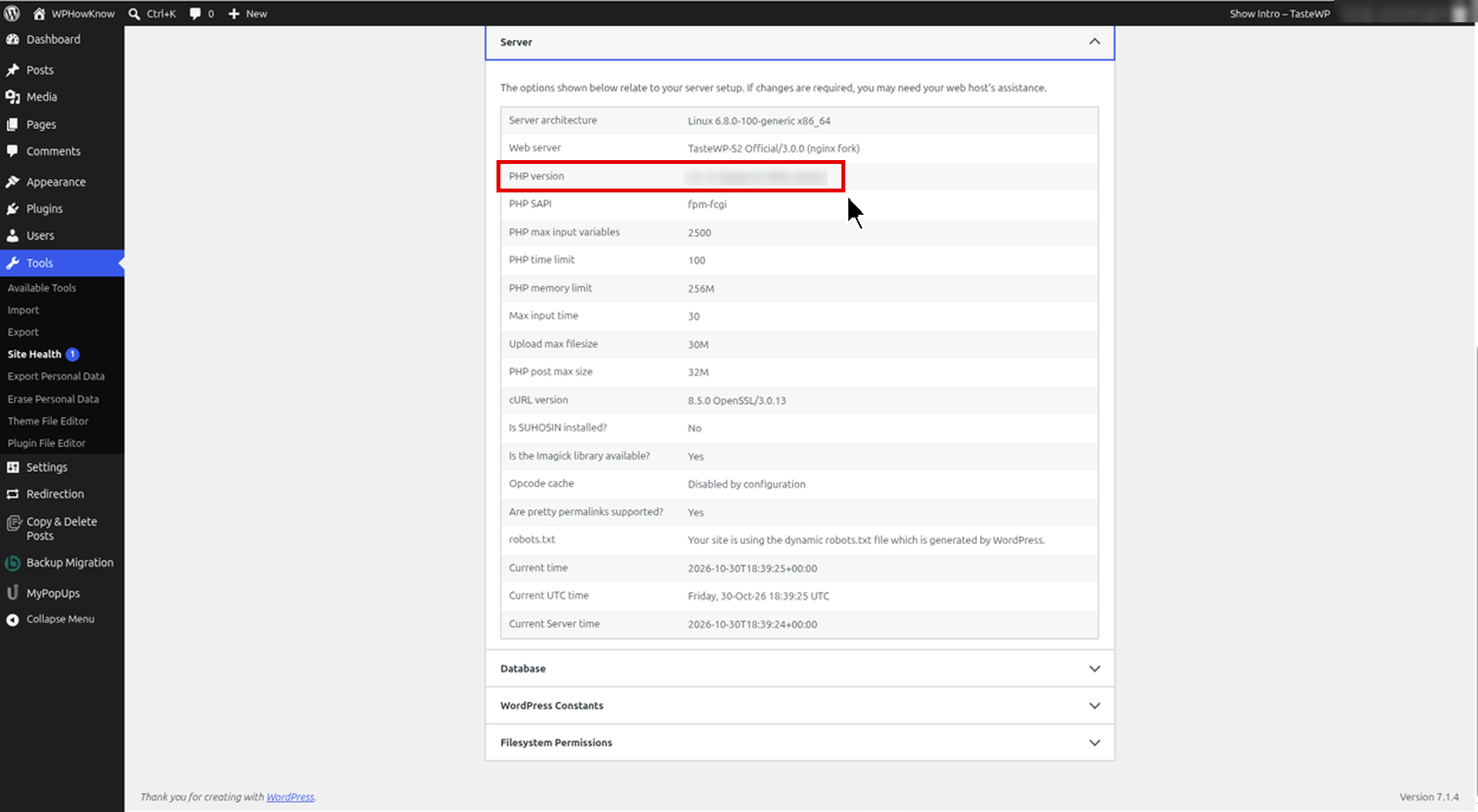
You can read more about this screen in the WordPress Site Health documentation.
Things to Do Before You Update PHP
Before you switch to a new PHP version, take these simple precautions so your website does not break.
1. Create a Backup of Your Website
Create a complete backup of your files and database. You can use a backup plugin or the Backup tool in cPanel. In case something goes wrong, you can restore your website using that backup. If you are new to plugins, see our guide on how to add a plugin to WordPress website.
2. Update WordPress, Themes and Plugins
Older plugins and themes are the most common reason a site breaks after a PHP update. So, first update WordPress to the latest version and then update all your themes and plugins. You can also enable auto updates for themes and plugins so they stay up to date.
3. Check Plugin and Theme Compatibility
Open each plugin page on WordPress.org and check the Requires PHP field. The PHP Compatibility Checker plugin is no longer maintained, so use it only as a rough check and don’t fully rely on it.
4. Test on a Staging Site (Recommended)
If your host offers a staging site, change the PHP version there first and test your site. The WordPress Update PHP guide also recommends this step.
How to Update PHP Version in WordPress Through cPanel (MultiPHP Manager)
Now comes the main part. Most cPanel hosts use MultiPHP Manager, which lets you set the PHP version for each domain separately.
Step 1: Log in to cPanel
Log in to your hosting cPanel account. Usually you can open it at yourdomain.com/cpanel or from your hosting account dashboard. GoDaddy users can follow our guide on how to access cPanel in GoDaddy.
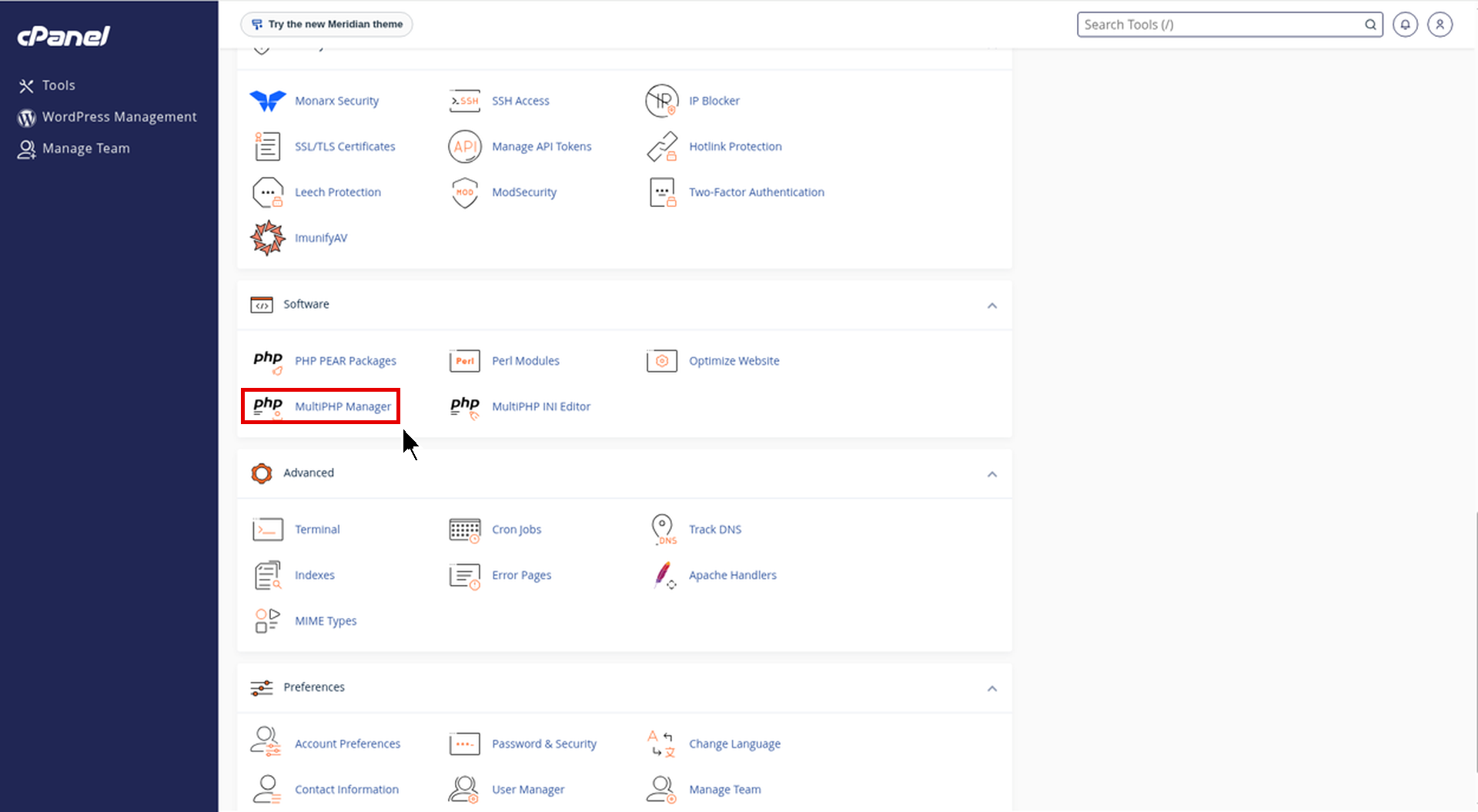
Step 2: Open MultiPHP Manager
Scroll down to the Software section and click on MultiPHP Manager.
Step 3: Select Your Domain
You will see a list of all domains on your account with their current PHP version. Tick the checkbox next to the domain where your WordPress website is installed.
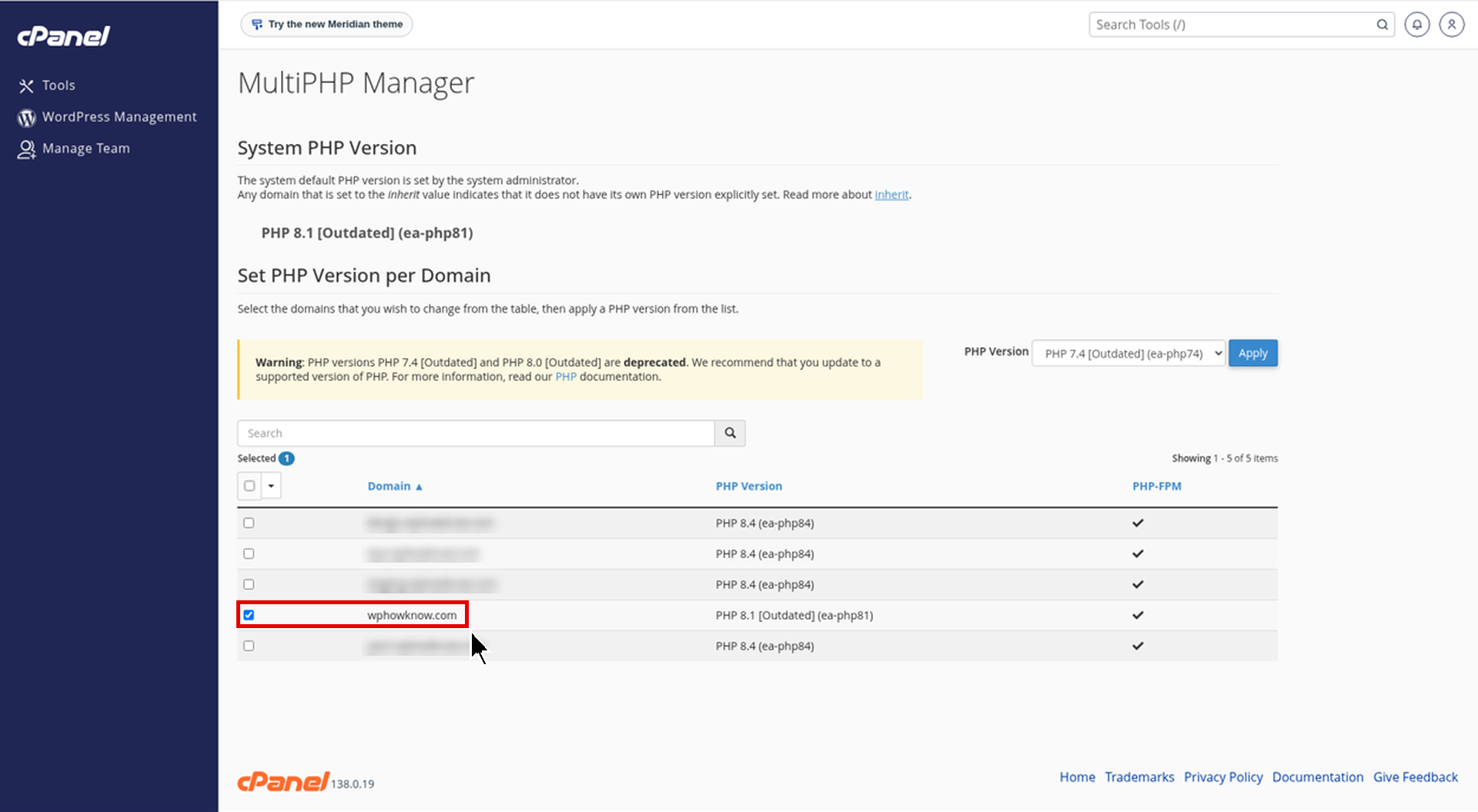
Note: If a domain shows inherit, it is using the server default PHP version. Selecting a version yourself makes sure your site does not change when the host updates the default.
Step 4: Choose the New PHP Version
On the top right, open the PHP Version dropdown and select the version you want, for example PHP 8.4 (ea-php84) or PHP 8.5 (ea-php85).
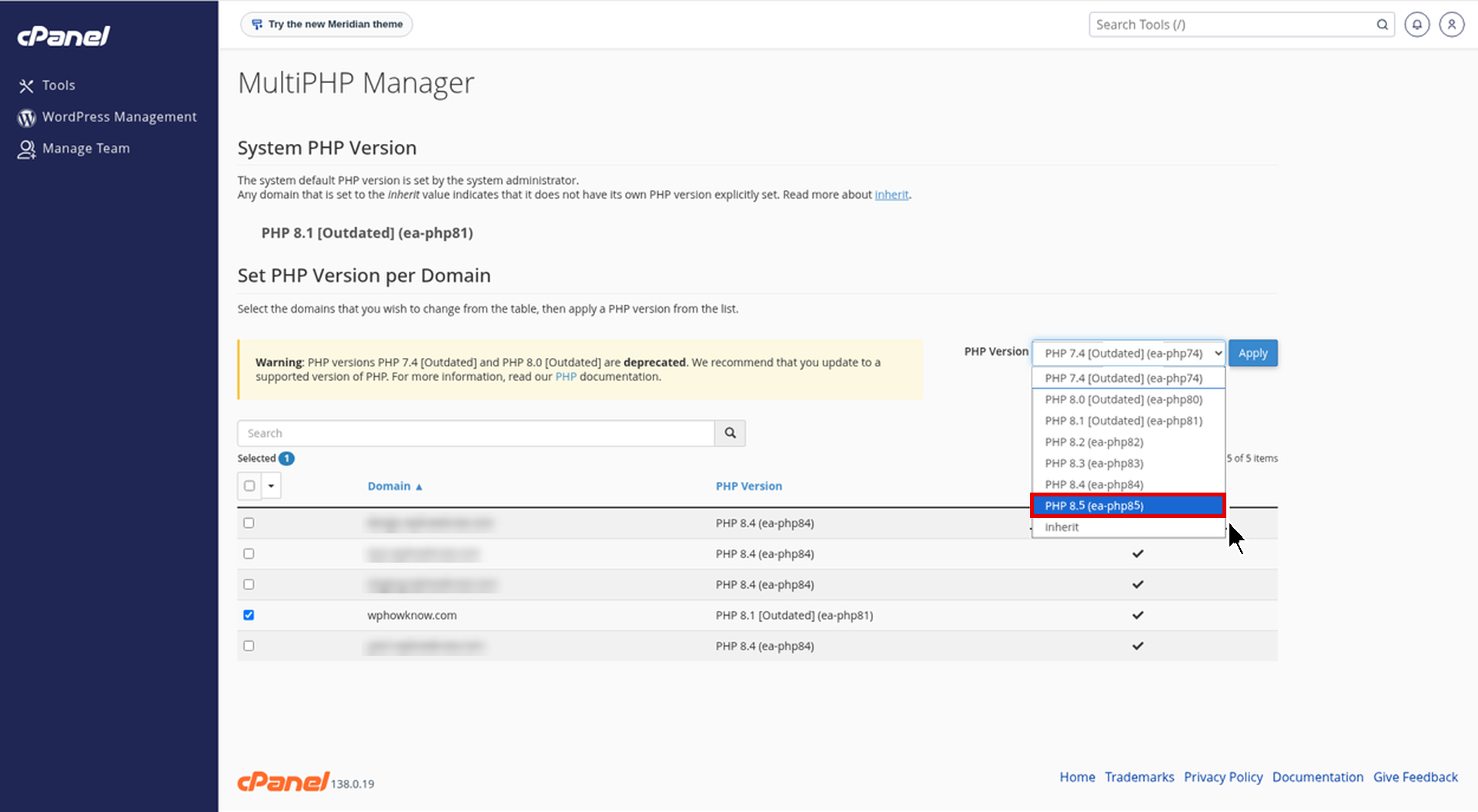
If the version you want is not in the list, it is not installed on your server. In that case, contact your hosting provider.
Step 5: Click Apply
Click on the Apply button. cPanel will show a success message and the new PHP version will appear next to your domain. The change takes effect right away.
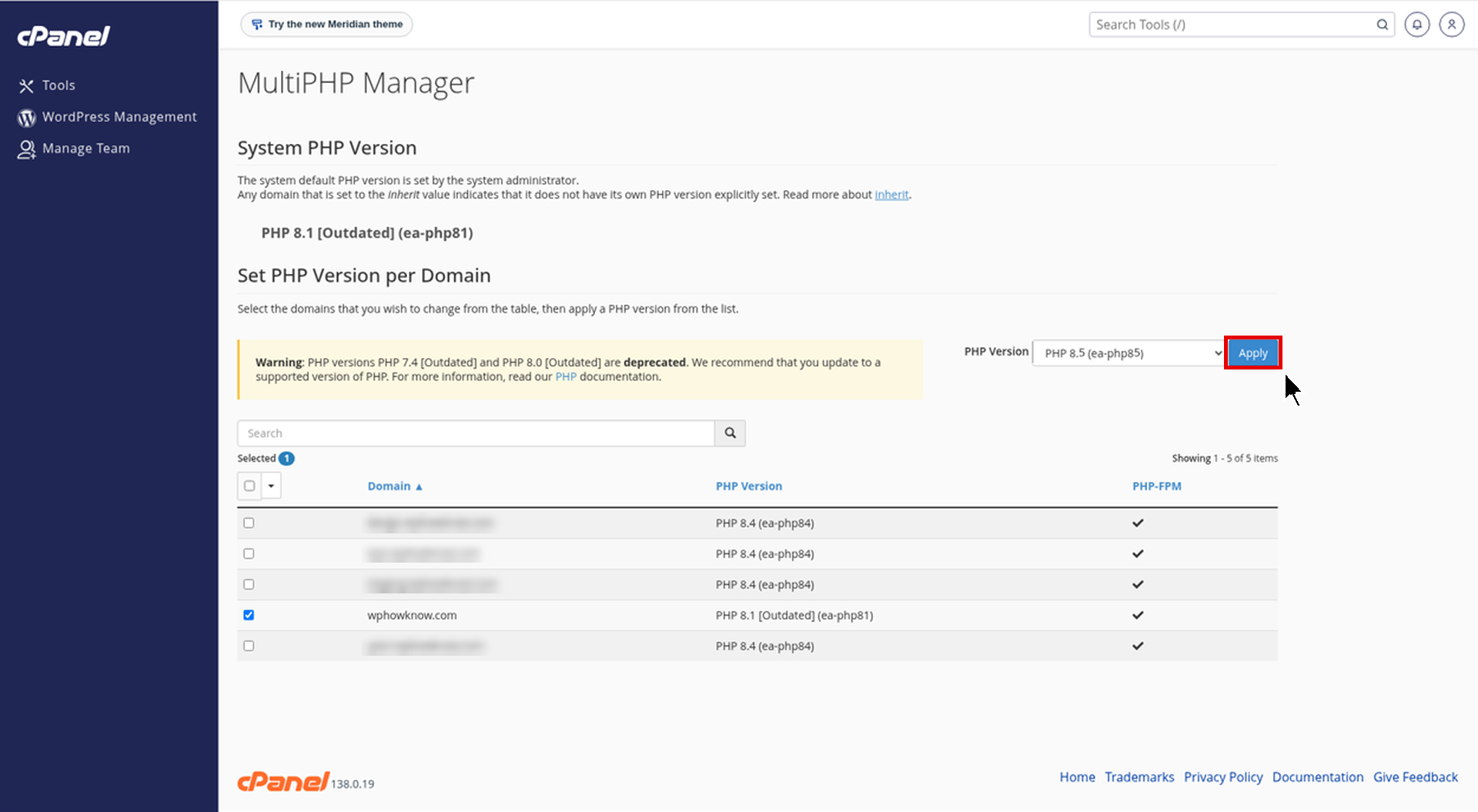
That’s it. You have updated the PHP version of your WordPress website through cPanel. For more details, see the official cPanel MultiPHP Manager documentation.
How to Change PHP Version Using Select PHP Version
Some hosts that use CloudLinux show Select PHP Version in the Software section instead of, or along with, MultiPHP Manager. Here’s how to use it.
- Log in to cPanel and click on Select PHP Version under Software.
- Your current version is marked as (current). Choose the new version from the dropdown.
- Click Apply (or Set as current on some hosts).
- Check the Extensions tab and make sure the extensions WordPress needs, like mysqli, curl, gd, mbstring and zip, are ticked.
Note: Select PHP Version changes PHP for your whole account, while MultiPHP Manager works per domain. Avoid the native option, as it is usually an old version. You can read more in this PHP Selector guide by WHC.
Check PHP Settings in MultiPHP INI Editor (Optional)
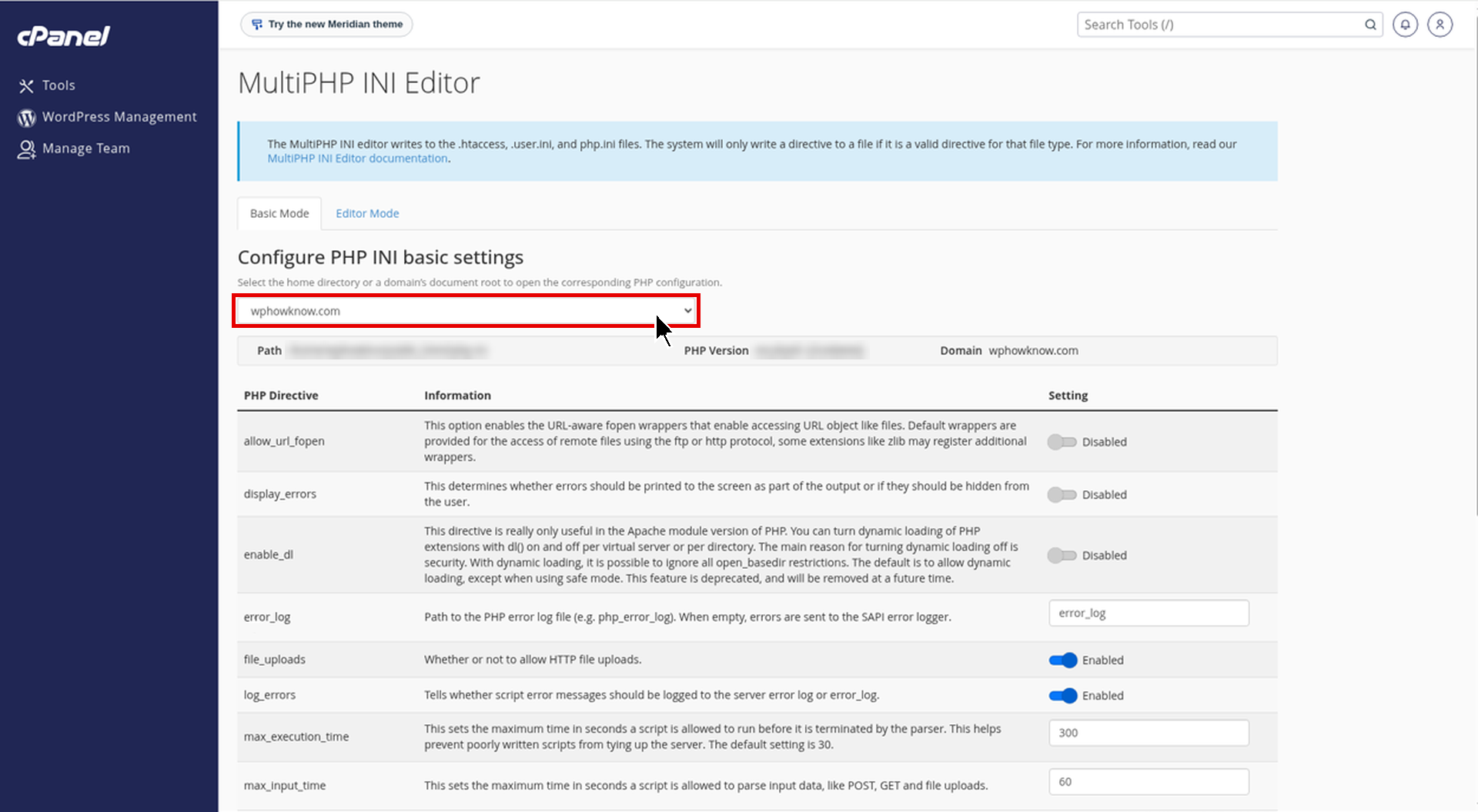
After a PHP update, some settings like memory_limit and upload_max_filesize can go back to default values. To check them, go to Software > MultiPHP INI Editor, select your domain and review the values. If uploads stop working, see our guide on how to increase the maximum upload file size.
How to Confirm the New PHP Version in WordPress
Now go back to your WordPress dashboard, open Tools > Site Health > Info > Server and check the PHP version row again. It should show the new version.
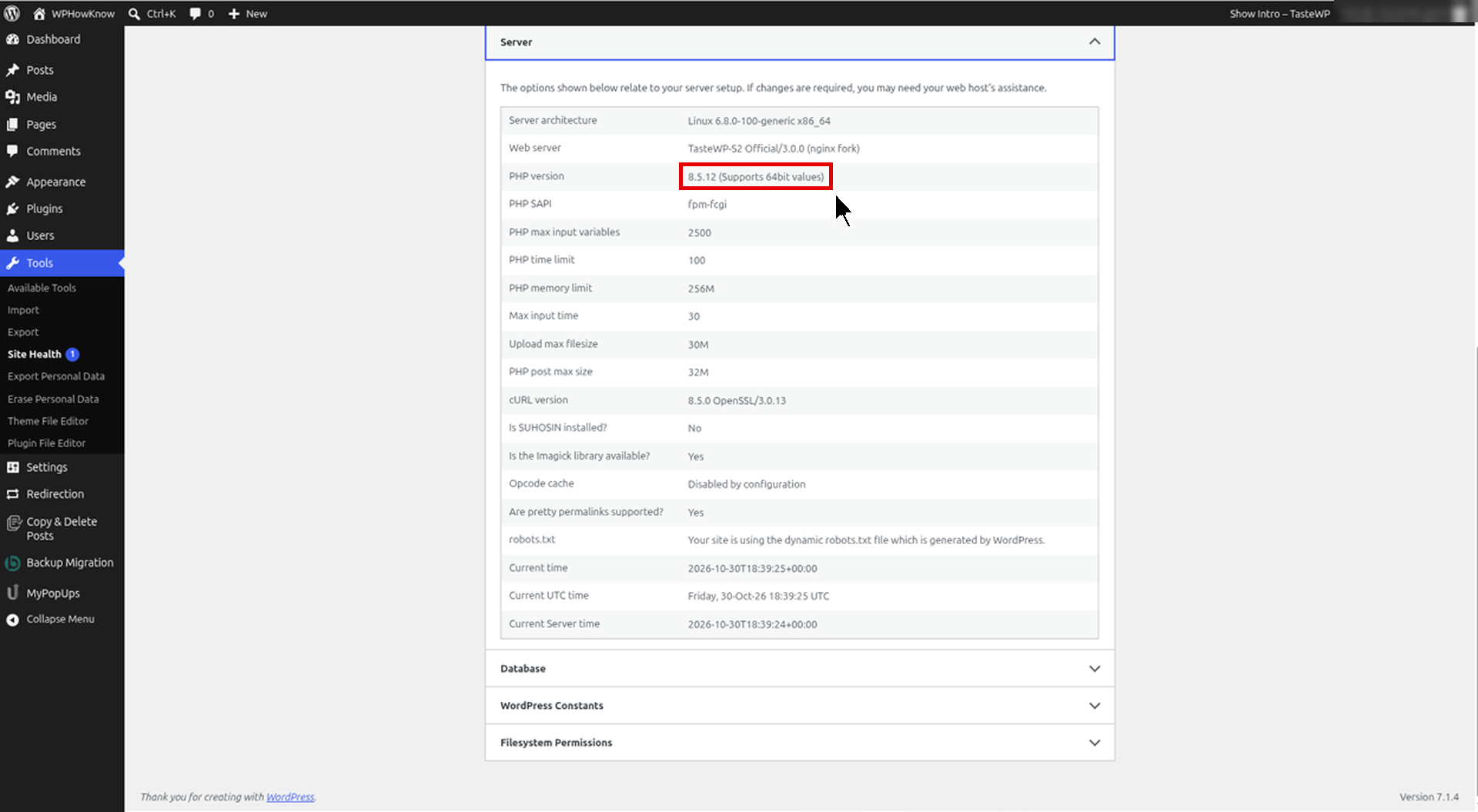
Also open your website in a private browser window and click through a few pages, your contact form and checkout (if you have one) to make sure everything works.
Troubleshooting After a PHP Update
White Screen or “There Has Been a Critical Error”
This usually means a plugin or theme is not compatible with the new PHP version. WordPress will send a recovery mode link to your admin email. Open that link, deactivate the plugin or theme causing the error, and then look for an update or replacement.
How to Roll Back to the Previous PHP Version
Go back to MultiPHP Manager, tick your domain, select the PHP version you noted earlier and click Apply. Your site will switch back immediately.
Site Still Shows the Old Version
Clear your cache plugin, Cloudflare cache (if you use it) and your browser cache, then check Site Health again.
MultiPHP Manager Is Missing in cPanel
If you can’t find MultiPHP Manager or Select PHP Version, your host has turned it off for your account. Contact your hosting support and ask them to update the PHP version for you.
Conclusion
Updating PHP version in WordPress through cPanel takes only a few minutes. Take a backup, update your plugins and themes, then use MultiPHP Manager to select the new version and click Apply. Finally, confirm it in Site Health. Running a supported PHP version keeps your website fast, secure and compatible with the latest plugins.
Do mention your views about this article in the comments section below.
FAQs
WordPress recommends PHP 8.3 or higher. For most sites, PHP 8.3 or 8.4 is the safest choice. Use PHP 8.5 only if your theme and plugins support it.
Log in to cPanel, open Software, then MultiPHP Manager. Tick your domain, choose the new version from the PHP Version dropdown and click Apply.
In your WordPress dashboard, go to Tools, Site Health, then the Info tab and open the Server section. The PHP version row shows the version in use.
It can if a plugin or theme is outdated. Take a backup and update WordPress, themes and plugins first. If something breaks, you can switch back to the old version in MultiPHP Manager.
Open MultiPHP Manager, tick your domain, select the previous PHP version and click Apply. The change takes effect right away.
Your host may use Select PHP Version instead, or may have disabled the tool for your account. In that case, contact your hosting provider.
MultiPHP Manager sets the PHP version for each domain separately. Select PHP Version, used on CloudLinux servers, sets it for the whole account and lets you manage PHP extensions.
No. Changing the PHP version does not touch your files or database. It only changes the PHP engine that runs your website.